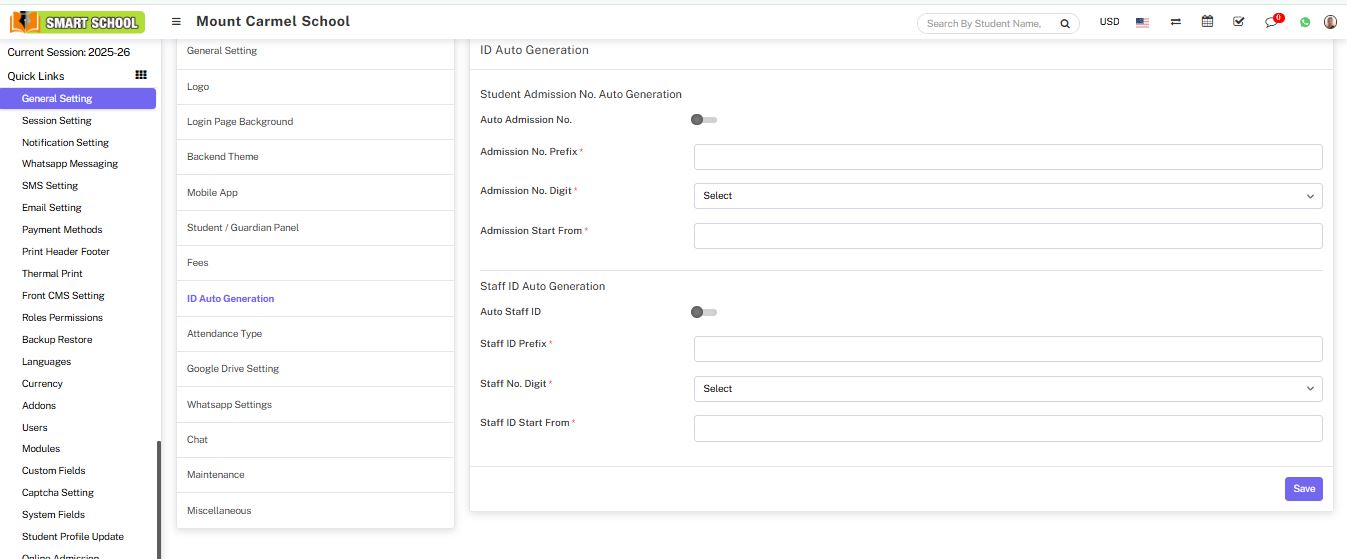
ID Auto Generation refers to the process of automatically creating a unique identifier for a record. This can be achieved using various methods, such as a database’s built-in auto-increment feature or by generating a random alphanumeric string. The purpose of an auto-generated ID is to ensure that each record has a unique identifier, making it easier to retrieve, track, and manage data.
Student Admission No. Auto Generation
To enable automatic generation of Student Admission Numbers, navigate to:
System Settings > General Setting > ID Auto Generation and change Admission No from Disabled to Enabled.
Important Configuration Steps
- Set a prefix, preferably an alphabetic value (e.g., SA).
- If you choose Admission No Digit = 4, then the Admission Start From value must also be a 4-digit number (e.g., 1000 or 1001).
Entering a number with fewer digits will result in an error. - Ensure that the auto-generated admission numbers do not conflict with any existing admission numbers that were previously entered manually.
If you keep this mode enabled, you will not need to manually create admission numbers—they will be generated automatically. To generate Admission Numbers automatically, fill in the Admission No. Prefix, Admission No. Digit, and Admission Start From fields, then click the Save button. Once saved, the Student Admission Number Auto Generation feature will be activated.
Staff ID Auto Generation
To enable automatic generation of Staff ID Numbers, go to:
System Settings > General Setting > ID Auto Generation
and change Auto Staff ID from Disabled to Enabled.
Important Configuration Steps
- Set a prefix, preferably an alphabetic value (e.g., SI).
- If you choose Staff ID No Digit = 4, then the ID Start From value must also be a 4-digit number (e.g., 1000 or 1001).
Entering a number with fewer digits will cause an error. - Ensure that auto-generated Staff ID numbers do not conflict with any existing staff IDs that were previously entered manually.
If you keep this mode enabled, you will not need to manually generate Staff IDs—they will be created automatically. To enable Staff ID Auto Generation, fill in the Staff ID Prefix, Staff No. Digit, and Staff ID Start From fields, then click the Save button. Once saved, the Staff ID Auto Generation feature will be activated.